

HubSpot
Automate your CRM workflow with HubSpot and Upmeet
🎯 Goal of this page
This page explains how to connect HubSpot to Upmeet, how data synchronization works, and where to find your meeting information in your CRM.
🔍 Overview
By integrating HubSpot with Upmeet, you automatically sync your meeting data to your CRM.
Once the integration is completed:
-
👤 Participants in your meetings are created in HubSpot as contacts if they do not already exist
-
📝 Each meeting is recorded as a note associated with the relevant contacts
👉 This allows you to centralize your conversations and keep a clear history of all your interactions directly in HubSpot.
🔌 How to integrate HubSpot with Upmeet
🔗 Connect Upmeet to HubSpot
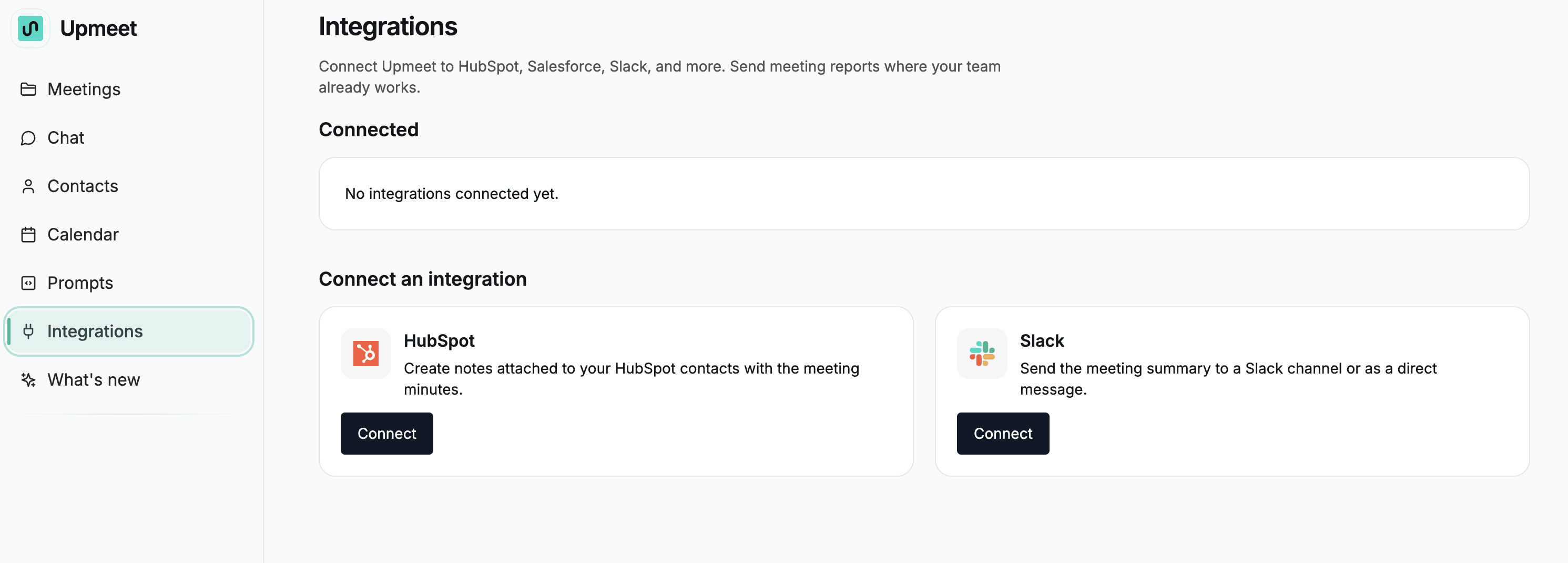
-
Go to your Upmeet dashboard
-
Go to the Integrations section
-
Select HubSpot
-
Click Connect
-
Follow the authentication steps
⚙️ Configure your integration
Default configuration options are applied so the integration works immediately after connecting Upmeet and HubSpot.
However, you can modify these settings to better suit your needs.
📄 View meeting notes in HubSpot
Once your meetings are finished:
-
Open HubSpot
-
Go to a contact who participated in the meeting
-
Check the Notes section
All your meeting notes will be attached to the contacts corresponding to the participants in your meetings.
👉 Result: you can easily find the complete history of your conversations directly in your CRM.