

Getting started with Upmeet
Create a meeting
📘 Upmeet: Meeting Creation Guide
This guide outlines how to use Upmeet to generate complete transcriptions, structured summaries, and AI-driven analysis for your meetings.
👉 Access the meeting creation page
🚀 Getting Started

To begin, click the Create button at the top right of the interface. You may optionally: * Select a prompt: Adapt the style of the generated summary. * Name the meeting: For better organization in your 'Meetings' space.
🎙️ Meeting Input Methods
Upmeet supports four primary ways to capture content:
1. Microphone (Live Recording)
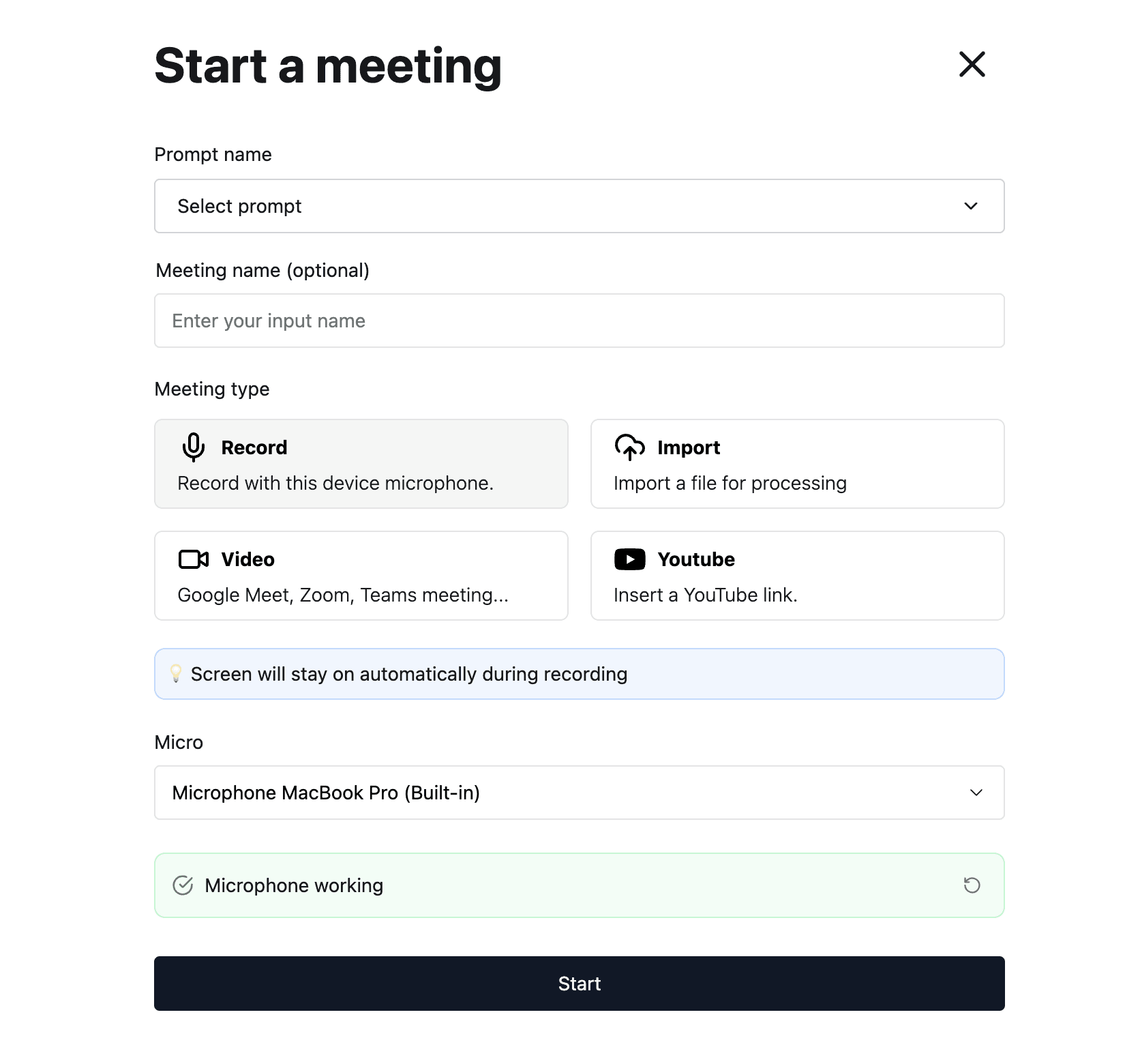
- Use case: Recording live meetings via computer or phone.
- Process: Select your device's microphone, test it if necessary, and click Create.
2. File Import
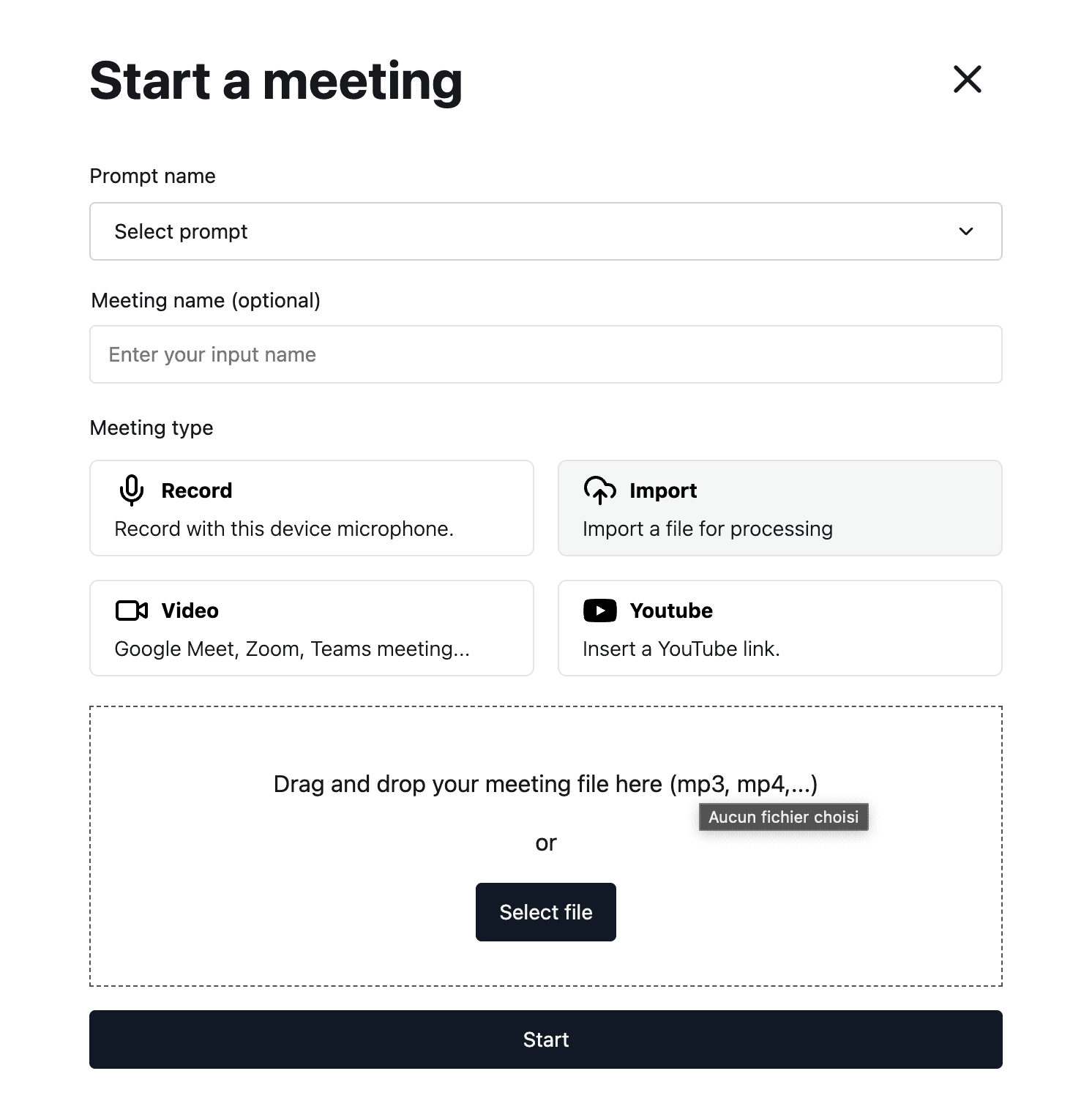
- Use case: Processing existing audio or video files.
- Process: Click Import and drag/drop your file. Common formats like MP3 and MP4 are supported.
3. Video Call Integration
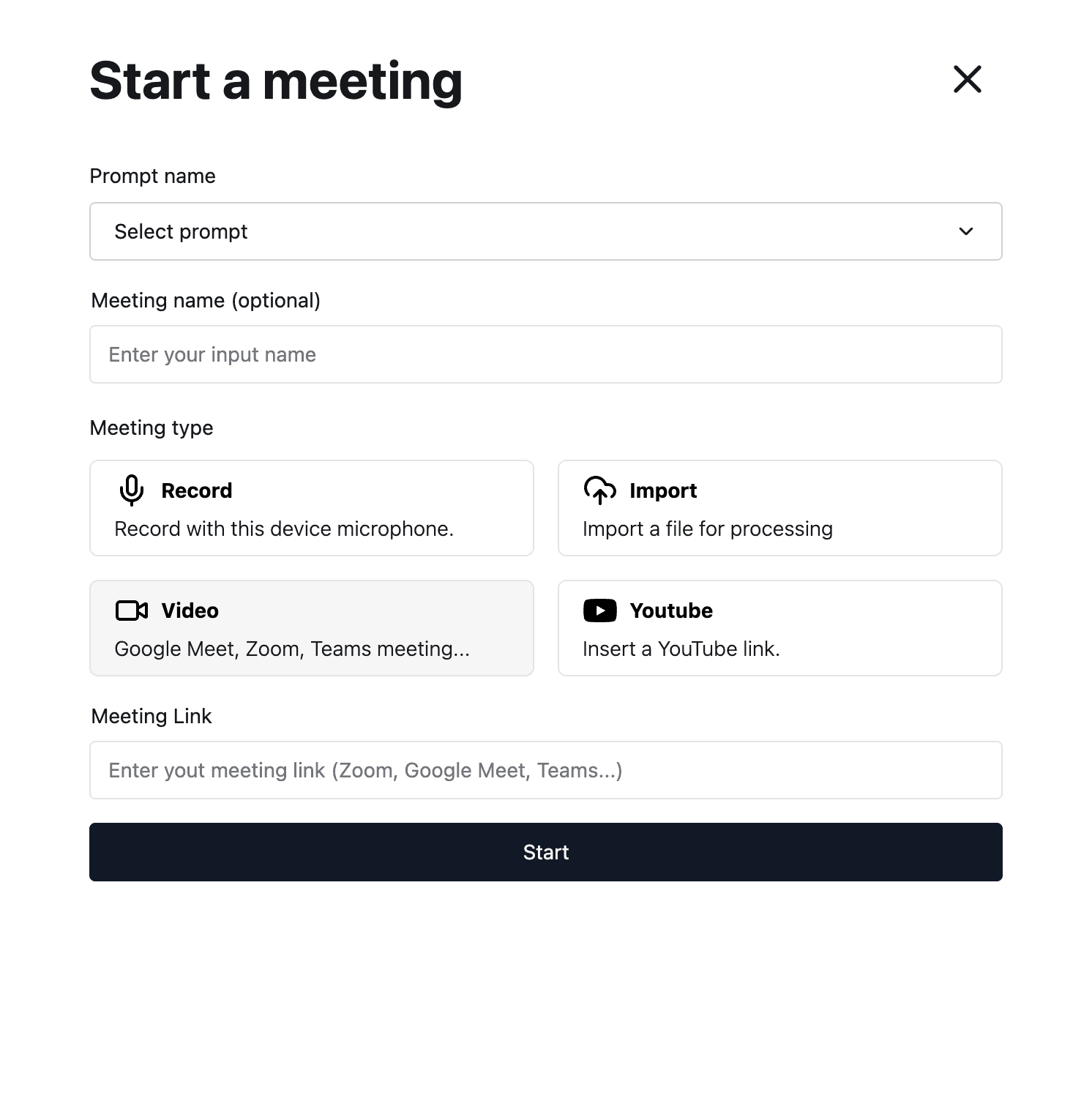
- Use case: Automatically joining and recording remote meetings.
- Compatible Platforms: Google Meet, Zoom, Microsoft Teams, and other services via access link.
- Process: Select Video call, paste the meeting URL, and click Create.
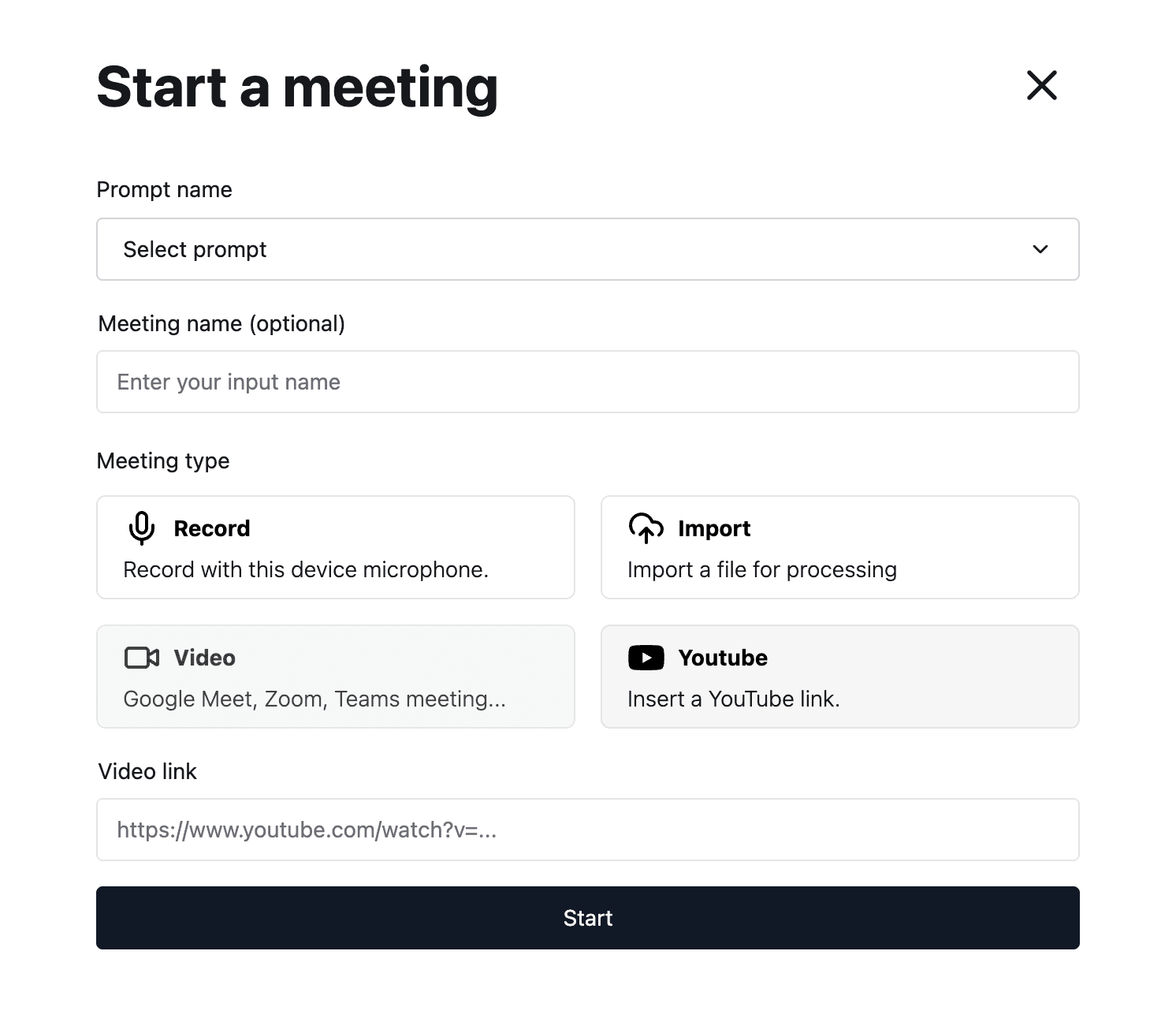
4. YouTube
- Use case: Analyzing existing video content.
- Process: Select YouTube, paste the video URL, and click Create.
🌐 Language & Customization
Language Configuration
- Automatic Detection: Upmeet identifies the primary language spoken during the meeting.
- Manual Override: You can manually select or change the language after the meeting concludes to refine the transcription, analysis, and summary.
How Upmeet Participates
- Participant Role: Upmeet joins your video calls as a 'normal participant.'
- Customization: You can rename the Upmeet participant in your account settings (web or mobile) to ensure it is clearly identified in your meetings.
💡 Key Takeaways
- Centralized Management: All processed meetings are stored in your Meetings space for easy modification and sharing.
- AI-Powered: Every meeting input is automatically transformed into a structured summary and full transcript.
- Flexibility: Whether live or recorded, Upmeet provides consistent analysis across multiple platforms and file types.
Need more help? Contact Upmeet Support