

The Agent
🎯 Objective of this page
This page explains how to use the Agent to act on your meeting notes.
You will learn:
-
where to find the Agent,
-
what the difference is with the regular Chat,
-
how to modify your notes in natural language,
-
how to validate changes before they are applied.
The Agent is Upmeet's most powerful AI assistant: it doesn't just respond, it acts on your meetings.
💫 1. What is the Agent?
1.1. Definition
The Agent is an AI assistant accessible directly from a meeting. It allows you to modify your notes in natural language: rewriting, translation, summarization, sharing, tone change…
Unlike the Chat which answers questions about your meetings, the Agent acts on the current meeting content.
1.2. Difference with the Chat
| Chat | Agent | |
|---|---|---|
| Usage | Ask questions about your meetings | Modify and act on the notes |
| Access | Chat Tab | From the meeting page |
| Examples | "What decisions were made?" | "Translate to English", "Share with the team" |
🚀 2. Accessing the Agent
2.1. From which page?
The Agent is only available from a meeting page. It is not accessible from the general Chat tab.
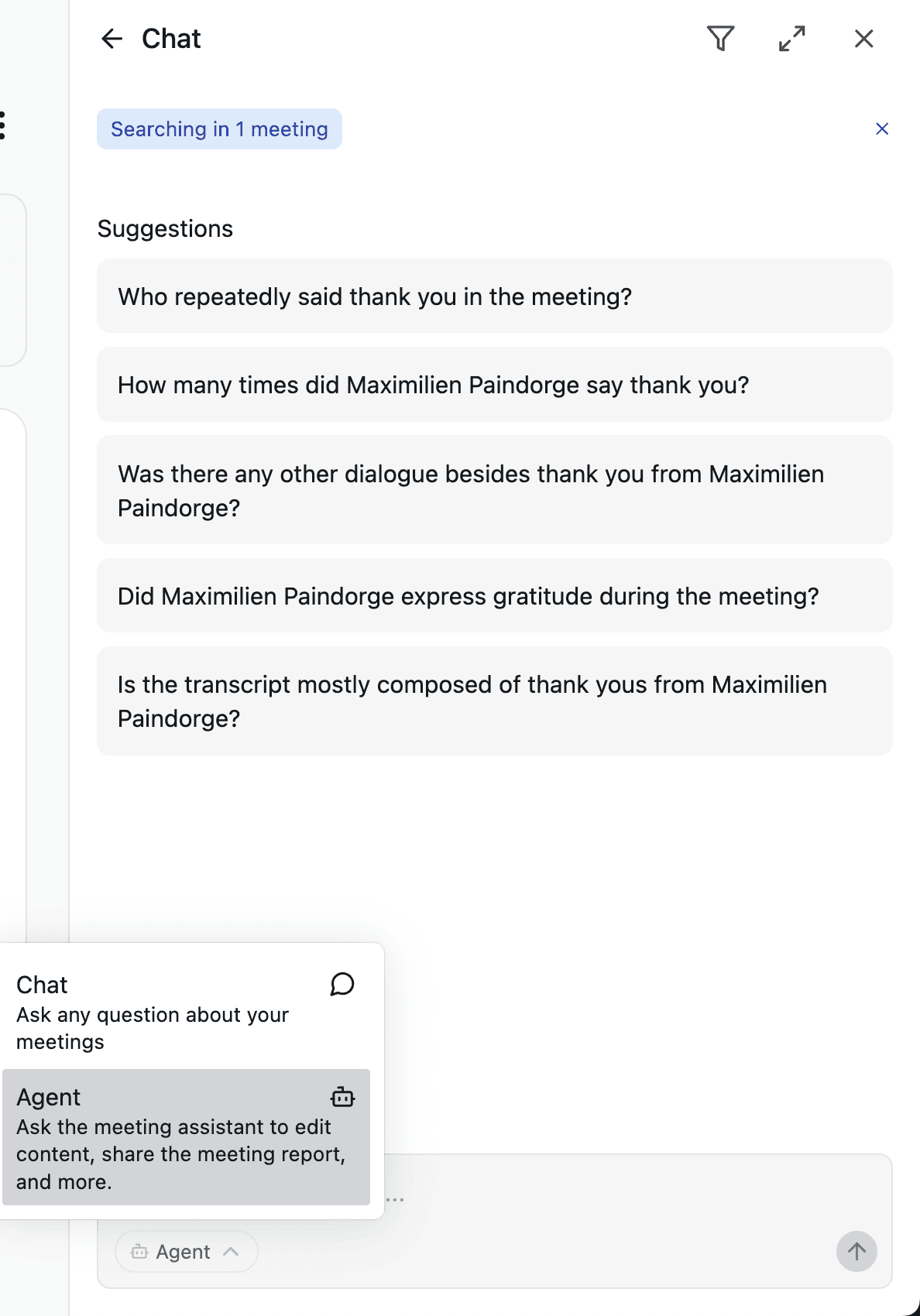
To access it:
-
Open a meeting from your meeting list.
-
Click on the Start a chat button at the top of the page.
2.2. Choosing the Agent mode
Once the window is open, a menu offers you two modes:
-
Chat — Ask any question about your meetings.
-
Agent — Ask the assistant to modify the content, share the notes, etc.
Select Agent to activate the action capabilities on the current meeting.
✏️ 3. Modify your notes with the Agent
3.1. How to give an instruction?
Describe in natural language what you want to change. The Agent understands your request and suggests an updated version before applying it.
Examples of instructions:
-
"Translate these notes to English."
-
"Shorten the summary to a maximum of 5 lines."
-
"Rewrite the key points in a more formal tone."
-
"Share these notes with my team."
-
"Adjust the wording for client delivery."
3.2. Validate before applying
The Agent never modifies your notes without your permission. It first suggests the changes, and you validate them before they are applied.
You maintain control at every stage.
3.3. What the Agent can do
-
Modify the tone of the notes (formal, concise, casual…)
-
Translate the content into another language
-
Shorten or expand sections
-
Share the notes with team members
-
Rewrite parts according to your instructions
📘 Summary of the Agent's features
| Feature | Description |
|---|---|
| Access from a meeting | Only available from the meeting page |
| Agent Mode vs Chat | Select the mode when starting the chat |
| Instructions in natural language | Describe the desired change in one sentence |
| Validation before application | You approve each modification before it is applied |
| Available actions | Rewriting, translation, summarization, sharing, tone change |